

ISNUMBER Function in Google Sheets
The ISNUMBER function in Google Sheets is a simple tool for checking whether a value is numeric. It returns a result of either TRUE or FALSE, making it useful for identifying numbers in your data.
This function is particularly helpful when working with datasets that contain a mix of numbers and text.
Syntax
The syntax is straightforward:
ISNUMBER(value)

Value
This is the value or cell reference you want to check. It can be:
A number
Text
A formula result
A reference to another cell
How the ISNUMBER Function Works
The function evaluates the value provided and returns:
TRUE if the value is a number
FALSE if the value is not a number
Using the ISNUMBER Function
Let’s walk through how to use the function step by step.
Step 1: Select a Cell
Click on the cell where you want the result to appear.
Step 2: Enter the Function
Type the following:
=ISNUMBER(
Step 3: Select the Value
Click on the cell you want to evaluate, for example:
=ISNUMBER(A2)
Step 4: Close the Function
Add a closing parenthesis and press Enter:
=ISNUMBER(A2)

Step 5: Review the Result
If A2 contains a number, then TRUE will be returned.
If A2 contains text or is empty, then FALSE will be returned.
Example

The formula used in column B: =ISNUMBER(A1)
The formula can then be copied down to apply it to additional rows.
Applying the Function to Multiple Cells
To use ISNUMBER function across a range:
Enter the formula in the first cell
Click and drag the fill handle down
The formula will automatically adjust for each row

Notes
ISNUMBER only checks if a value is numeric; it does not convert text into numbers
Cells containing numbers formatted as text will return FALSE
Empty cells will return FALSE
Common Mistake: Numbers Stored as Plain Text
A common issue in Google Sheets is when a value appears to be a number but is actually stored as text.
This often happens when:
Data is imported from another system
Cells are formatted as Plain text before entering values
In the example below, notice how the value 123456 is treated differently:
ISNUMBER returns FALSE
ISTEXT returns TRUE
Even though it appears to be a number, it is stored as text. Another giveaway sign is a left-justified cell value; this indicates the value will be text.
Number values will typically be right-justified by default, but they can be adjusted manually. The good news is, now you know how to check if a value is actually a number or not by using the ISNUMBER function.

Summary
The ISNUMBER function is a simple way to check whether a value is numeric in Google Sheets.
It uses a single argument: the value to evaluate
It returns TRUE or FALSE
It can be applied across multiple rows quickly
Conclusion
The ISNUMBER function is a useful starting point when working with data validation and analysis in Google Sheets.
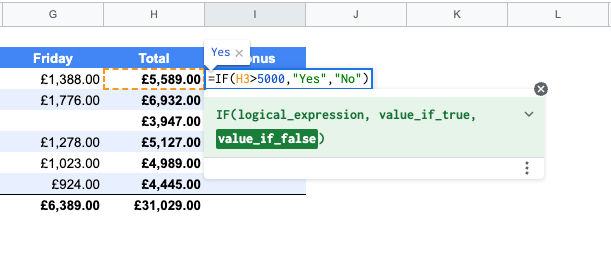
Once you are comfortable using this function, you can combine it with other conditional functions, such as the IF function, to perform more advanced tasks and improve your workflow.
Another powerful approach is to use the ISNUMBER function in conjunction with conditional formatting to dynamically adjust your table based on its output.


Comments